Tax listing in TreezSoft
Tax listing inTreezSoft cloud accounting is a list of tax that a company would like to impose.
For some companies, they may not be required to be registered under GST, but they would like to impose a certain percentage of tax on their goods or services. In such case, you can set up your own list of taxes that you would like to impose.
Then, you can just choose which tax you would like to impose on the targatted items, and these tax will automatically be imposed whenever you choose the item when issuing an invoice.
To view and edit the list of taxes you are using, navigate through: Tax > Tax Setup.
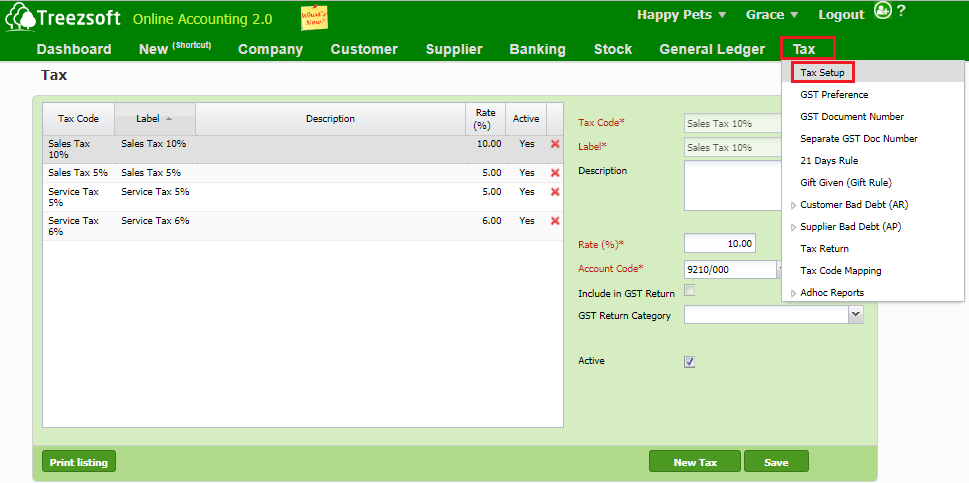
Then follow the steps below:
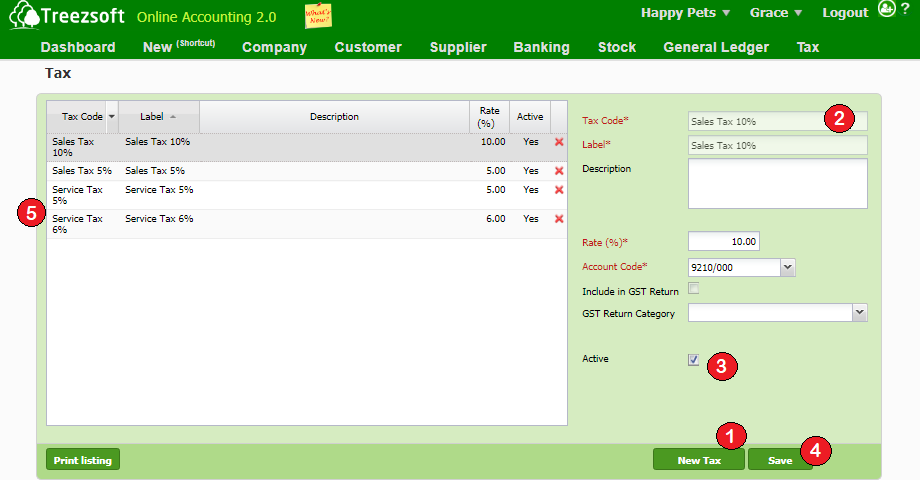
1. To add a new Tax, click on New Tax button.
2. Enter the details for your tax.
3. Tick on the box labelled 'active' to ativate your tax or untick it to keep it inactive.
4. Click on Save.
5. You can view your taxes in this listing. You can also edit them by clicking on the tax you want to edit. Click on the 'Red Cross' button in the row to delete the tax.
Set up tax code for items
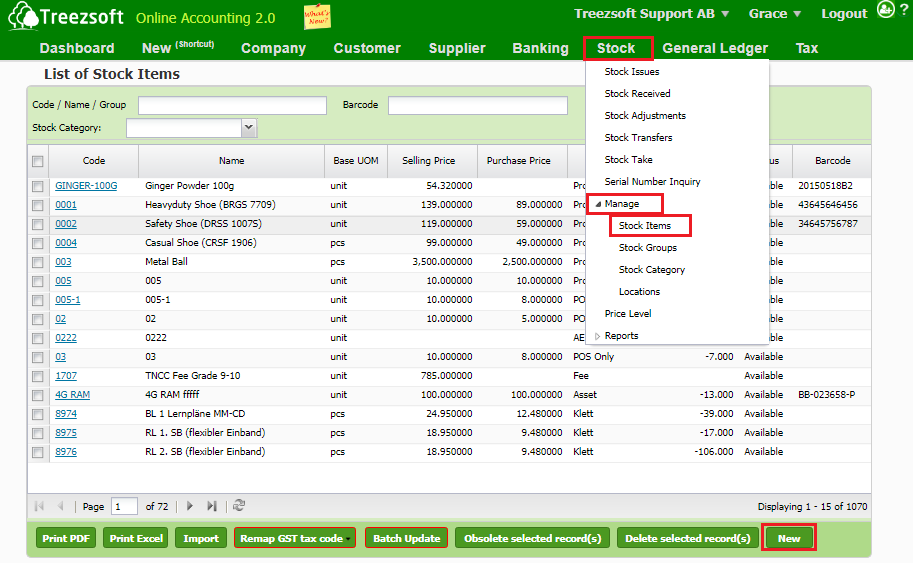
To set up tax code for each product, navigate through Stock > Manage > Stock Items. Click on “New” button at the bottom right corner to create a new stock item. For edit the existing stock item, click on the hyperlinked stock code that you want to edit.

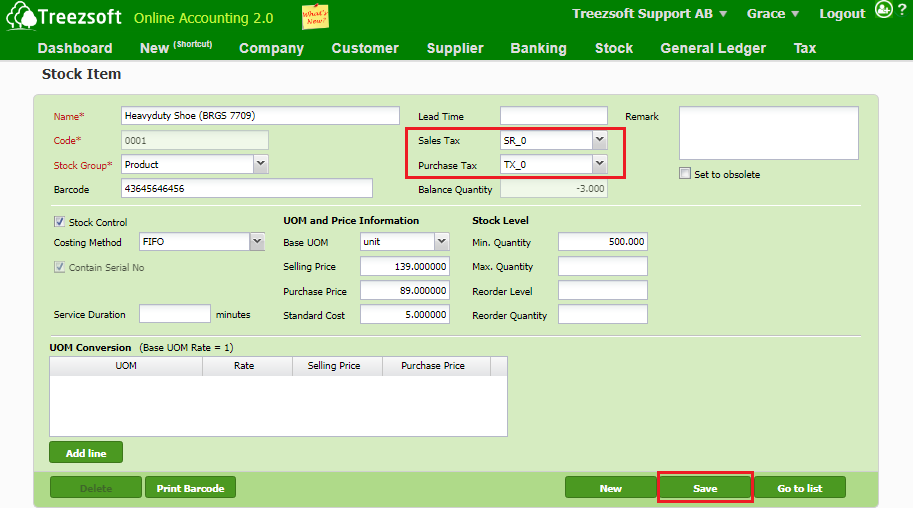
Enter the details and select the tax code that you want in the "Sales Tax" and "Purchase Tax" columnc. Click on “Save” once you have done.

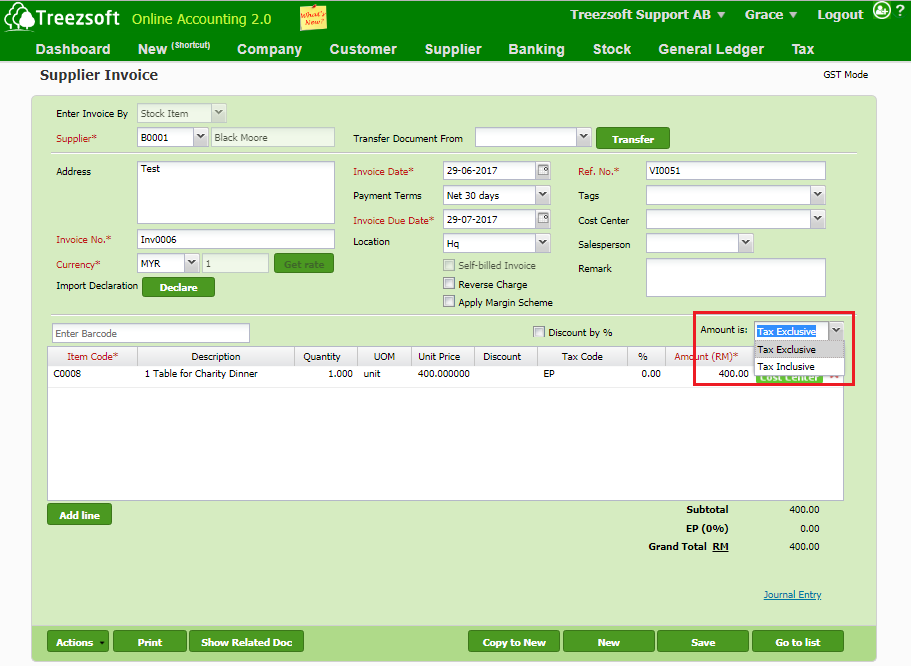
Tax Inclusive or Exclusive method for Invoices
When issuing invoices, you can choose for it to be either Tax Inclusive or Tax Exclusive in the column shown below.
Example used is Supplier Invoice.

You can read more on taxes in TreezSoft by visiting these links:
TreezSoft is a cloud accounting software for Small and Medium-sized Enterprises (SMEs). It allows you to access your financial information anytime, anywhere. It also allows you to have unlimited users for FREE for your account in TreezSoft. Our aim is to help reduce our clients' time spent on accounting mainly by using our automated processes and integration to help increase their company effeciency at a minimum costs. SMEs can use TreezSoft to keep track their expenses, accounts, daily operation e.g. Point of Sales (namely QPOS) system and etc.
Visit TreezSoft at http://www.treezsoft.com/ to sign up for a 30 days trial account with us!
You can also email us at [email protected] for more enquiries.