TreezSoft cloud accounting software allows users to generate their own barcode for each stock item and print it directly to the barcode printer. This tiny image of lines and spaces that can be attached to items or other objects allows retailers to scan and retrieve item info such as name and price in no time from Treezsoft. This eliminates the possibility of human error, time-saving and improves inventory control.
So, how to generate and print your first barcode from Treezsoft? Let's see the steps below.
First, please go to http://accounting.treezsoft.com/?type=ui§ion=login
Next, select Stock Item under the Stock module.
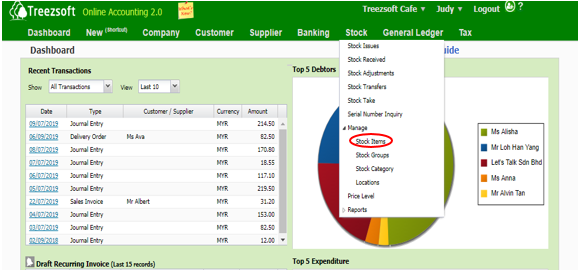
In this screen, select an item by clicking on the hyperlink in the circle.
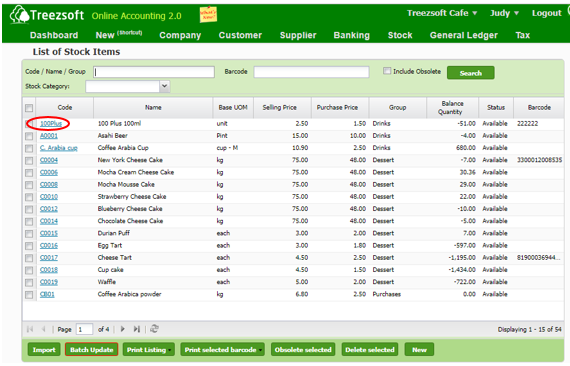
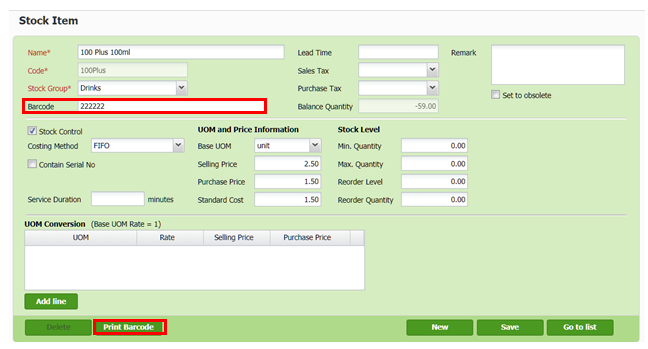
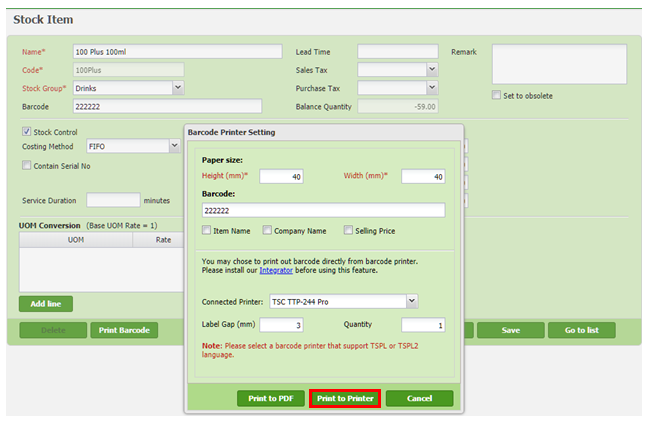
Enter the barcode and save, then click on the Print Barcode.
In the Barcode Printer Setting, fill up necessary info and click Print to Printer. (If you never install our integrator and the barcode printer, please refer to section Pre-requisite below)
Note:
Paper size: Size of the barcode label
Connected Printer: Select a barcode printer.
Label Gap: The gap size between 2 label
Quantity: The number of barcode copies to be printed in one go.
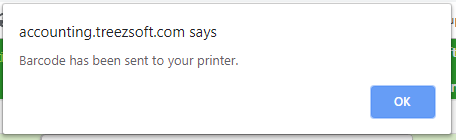
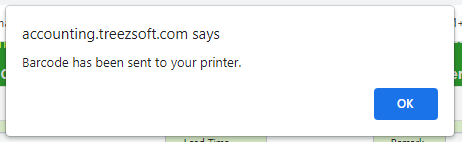
A popup message will show to inform you the Barcode has been sent to your printer. Please make sure your printer is connected to the PC to proceed the barcode printing.
Pre-requisite:
1) Install Barcode Printer
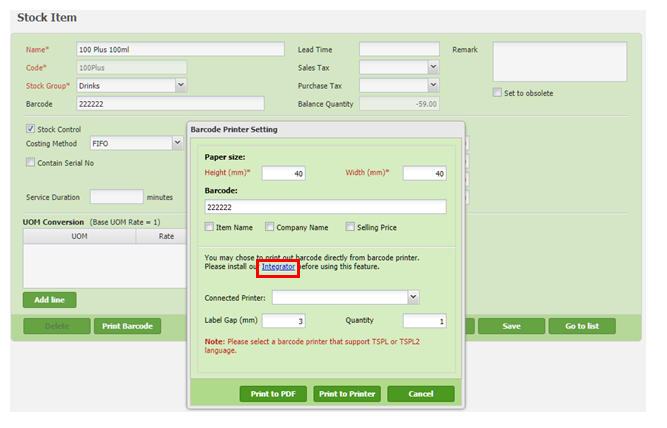
For first-time users, please download the Integrator in the circle. This integrator only needs to install once and will not need to install again after installation.
After successfully installing the Device Integrator, the screen below will show up after clicking on the Device Integrator.
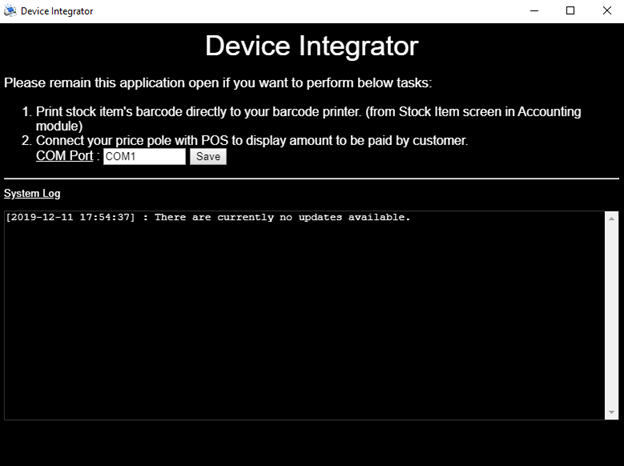
* This program will need to manually start up during Windows startup
2) Install Device Integrator
The recommended printer is TSC TTP-244 Pro, other printers can also be used as long as it supports TSPL or TSPL2 language.
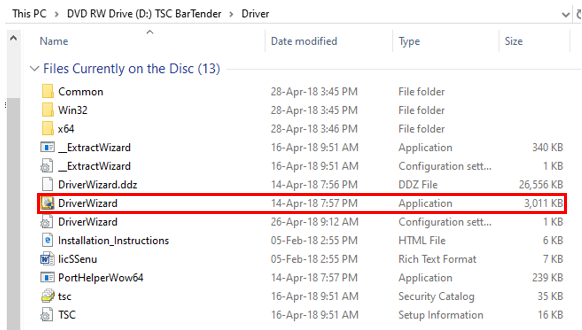
Firstly, the steps below are based on model TSC TTP – 244 Pro. Users need to find the installation disk which normally comes together with the barcode printer.
After entering the dicks to PC/laptop, select Driver and double click on the DriverWizard to install the application. Meanwhile, please make sure the printer is connected to your PC.
After installing the barcode printer successfully, it can be found in the Connected Printer under the Barcode Printer Setting.
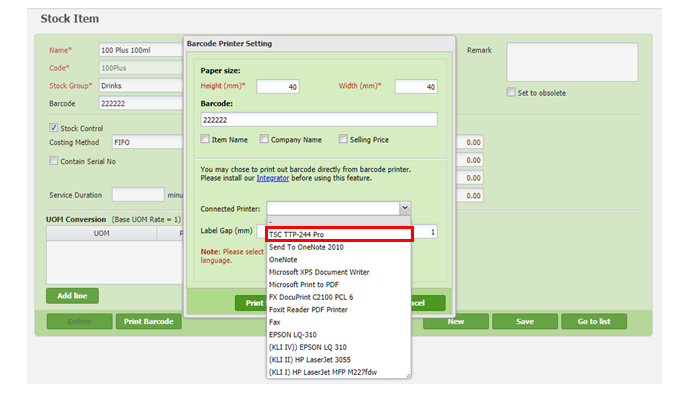
Select the connected printer and click on Print to Printer. After that, your barcode will be sent to your printer.
You can visit these links to read more about stock items in TreezSoft:
TreezSoft is a cloud accounting software for Small and Medium-sized Enterprises (SMEs). It allows you to access your financial information anytime, anywhere. It also allows you to have unlimited users for FREE for your account in TreezSoft. Our aim is to help reduce our clients' time spent on accounting mainly by using our automated processes and integration to help increase their company efficiency at a minimum cost. SMEs can use TreezSoft to keep track of their expenses, accounts, daily operation e.g. Point of Sales (namely QPOS) system and etc.
Visit TreezSoft at http://www.treezsoft.com/ to sign up for a 30 days trial account with us!
You can also email us at [email protected] for more inquiries.