In your day-to-day business, you may encounter situation like your supplier had overcharged you or you have returned some goods received due to various reasons. In such cases, your suplier will raise a credit notes against the amount involved.
You can easily record these documents in TreezSoft cloud accounting software, simply by navigating through: Supplier > Refund and Credit > Supplier Credit Notes. Click on the “New Supplier Credit Note” button at the bottom right corner.
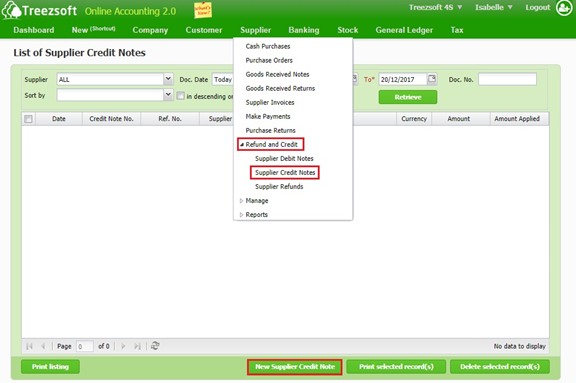
Enter the details and click on "Save" to confirm and proceed.
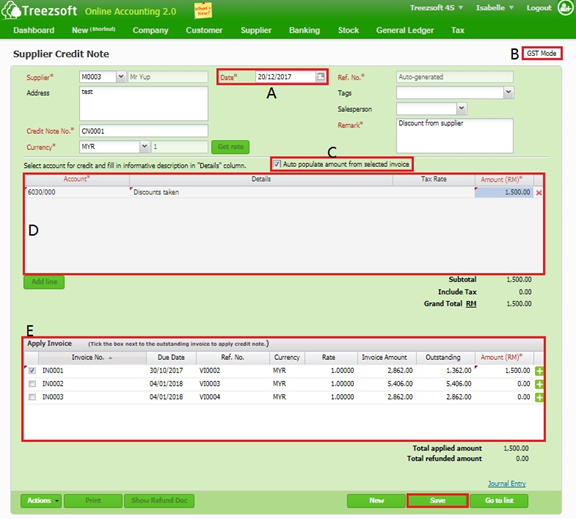
A - Select Date of credit note.
B - Observe whether it is in GST Mode.
C - Tick Auto populate amount form selected invoice. (System will auto determine amount, GST amount and corresponding GST code to be credited based on selected invoices)
D - Observer auto populated amount and GST code to be credited. (System will credit as Discount Taken by default)
E - Select invoices to be credited.
Fields marks with asterisk (*) are required fields.
Note:
If you try to issue credit note with credit note date is out of your supplier GST commence and cease date,
the indicator GST Mode would disappear and you are not allowed to charge GST.
If you would like manually assign the account code to be credited, un-tick Auto populate amount form
selected invoice and the account code table would be available for editing.
You can read more on Credit note modules in TreezSoft by visiting these links:
TreezSoft is a cloud accounting software that aims to increase our clients efficiency in their business financial health management. We do so by integrating and automating accounting processes as much as we can (e.g. integration between our accounting software and POS system and double entry). we also allow users to create unlimited users for FREE for your account in TreezSoft.
Visit TreezSoft at http://www.treezsoft.com/ to sign up for a 30 days trial account with us!
You can also email us at [email protected] for more enquiries.