Logo
  • Features
  • Pricing
  • Support
  • Contact
  • Blog
  • E-Invoicing
  • About
  • Integration
  • API
  • About Integration API
  • Login
    Accounting
    Point Of Sales (POS) Job Order
Warning! Payment is due for the implementation of this System. Please refer to the Product Detail page.
Warning!

How to register overpayment/underpayment from customers

Posted By  joey  at  Jul 23 2021 16:02        2360


Overpayment

Overpayment from customers means that the customers pay you more than what they required to pay. An example to record down the transaction step by step in Treezsoft Accounting are shown as below.

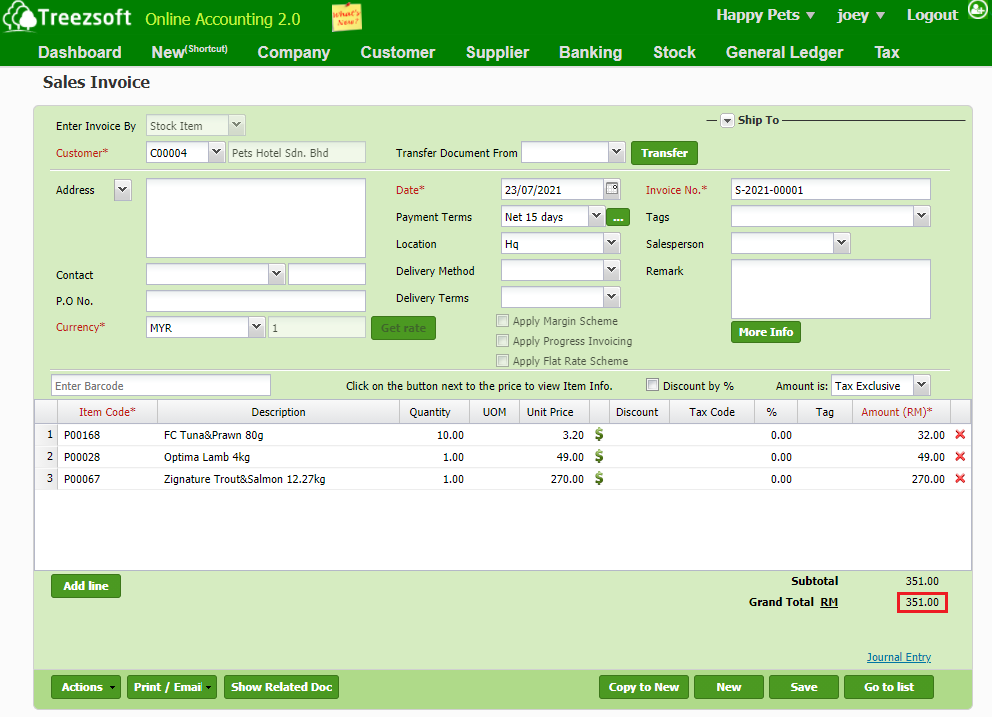
1. Invoice's oustanding amount RM 351.00

  • Debit: Bank
  • Credit: Pets Hotel Sdn. Bhd. (Account Receivable)
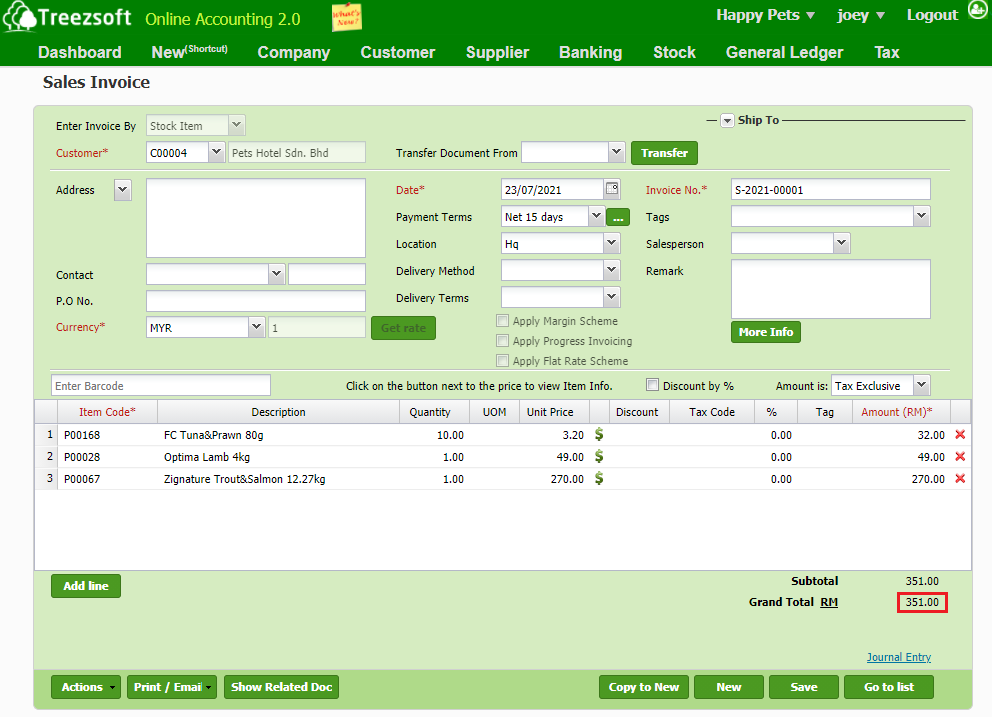
 

2. Receive Payment from customers (Pets Hotel Sdn. Bhd.) RM 360.00

  • Debit: Bank
  • Credit: Pets Hotel Sdn. Bhd. (Account Receivable)
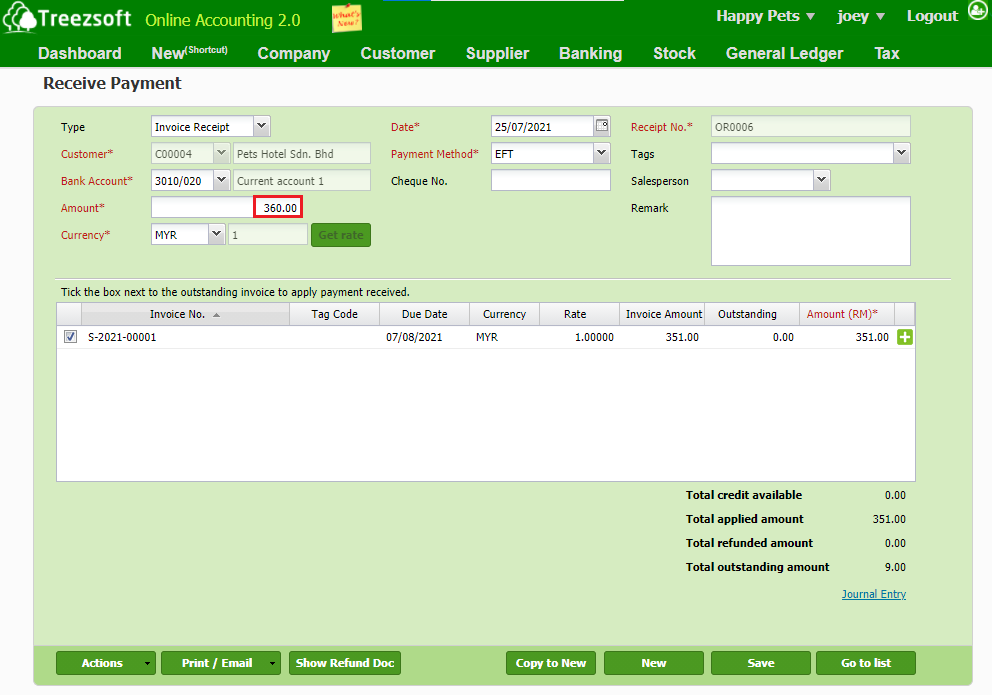
 

3. Overpayment of RM 9.00 from customer (Pets Hotel Sdn. Bhd.). Create a refund to record down the transaction.

  • Debit: Pets Hotel Sdn. Bhd. (Account Receivable)
  • Credit: Bank

Go to Customer > Refund and Credit > Refunds
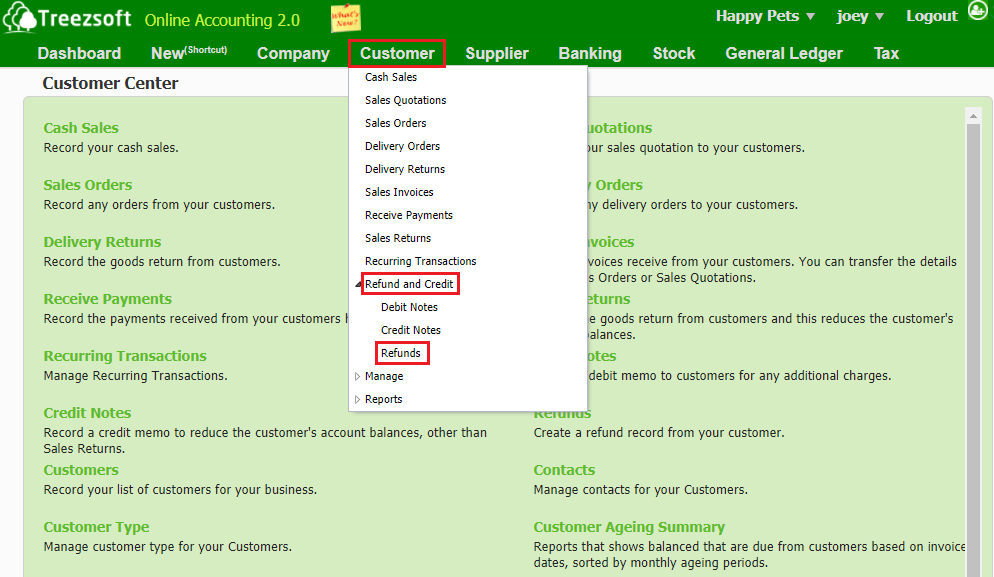
 

Click on "New Refund"
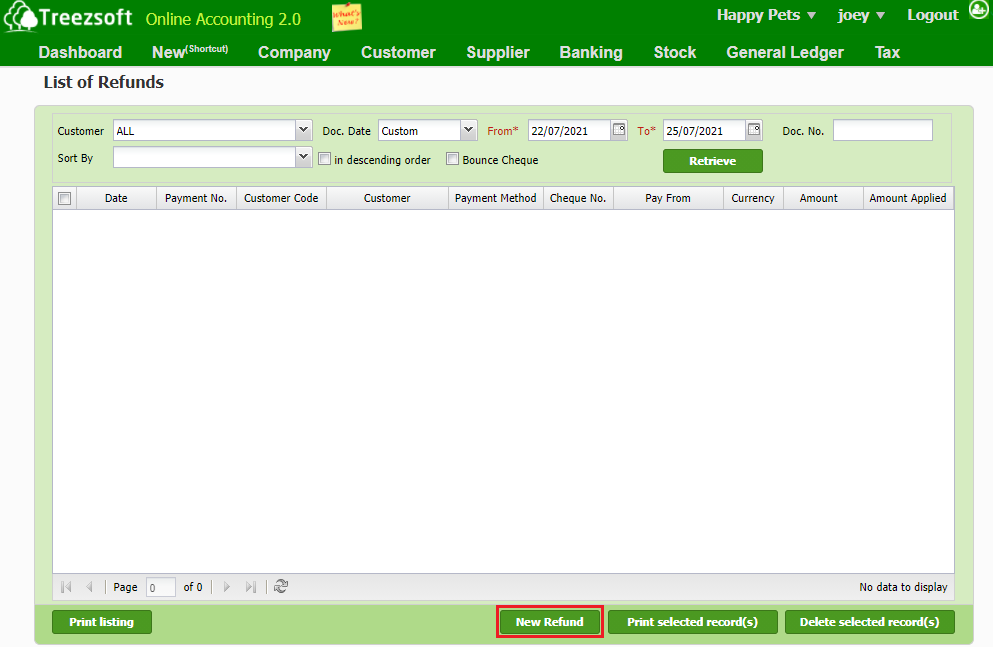
 

Key in the details needed:
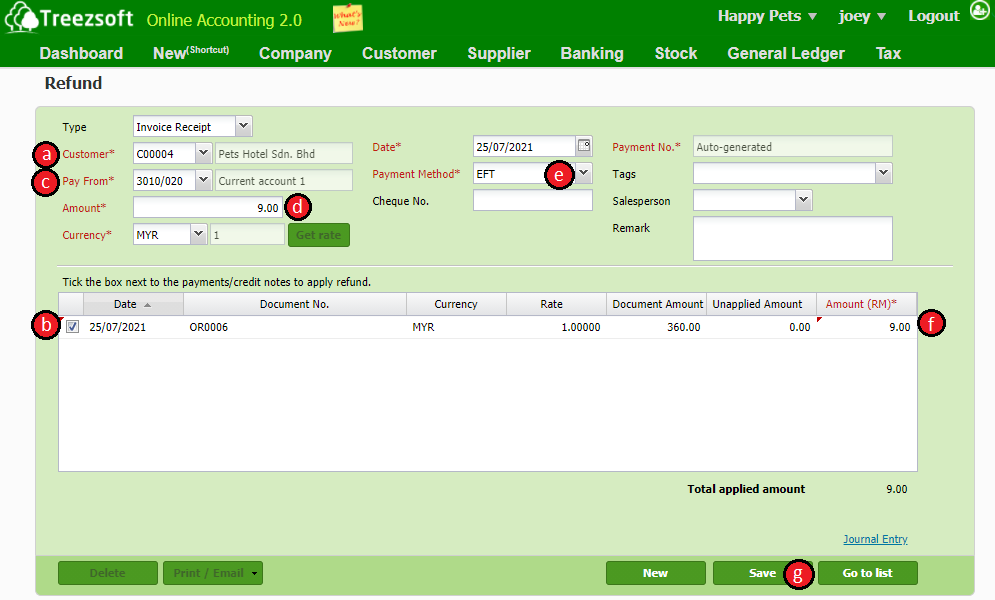

a. Select the respectively customers

b. Tick on the box of specific payment to apply for refund

c. Select the account for the payment of refund

d. Key in the amount included

e. Select the payment method

f. Key in the amount included

g. Once done, click on "save" to save the record


Underpayment 

Underpayment from customers means that the customers are paying less than the required amount to you. An example to record down the transaction step by step in Treezsoft Accounting are shown as below.

1. Invoice's oustanding amount RM 351.00

  • Debit: Bank
  • Credit: Pets Hotel Sdn. Bhd. (Account Receivable)
 

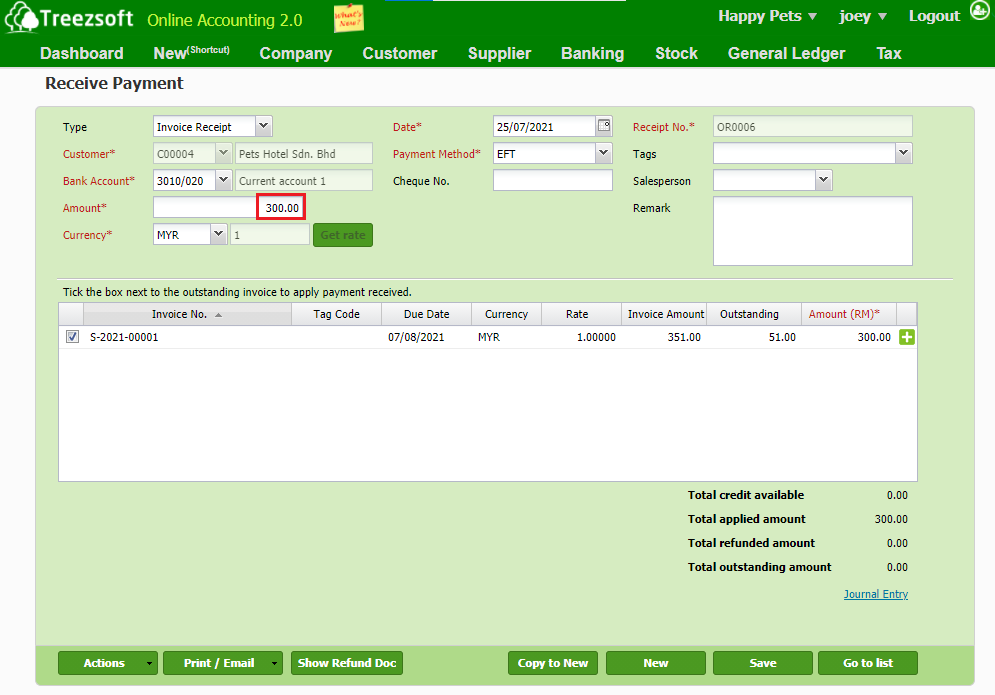
2. Receive Payment from customers (Pets Hotel Sdn. Bhd.) RM 300.00

  • Debit: Bank
  • Credit: Pets Hotel Sdn. Bhd. (Account Receivable)
 

3.  Underpayment of RM 51.00 from customer (Pets Hotel Sdn. Bhd.). Record down the transaction in receive payment once receive the outstanding amount from the customer.

  • Debit: Bank
  • Credit: Pets Hotel Sdn. Bhd. (Account Receivable)
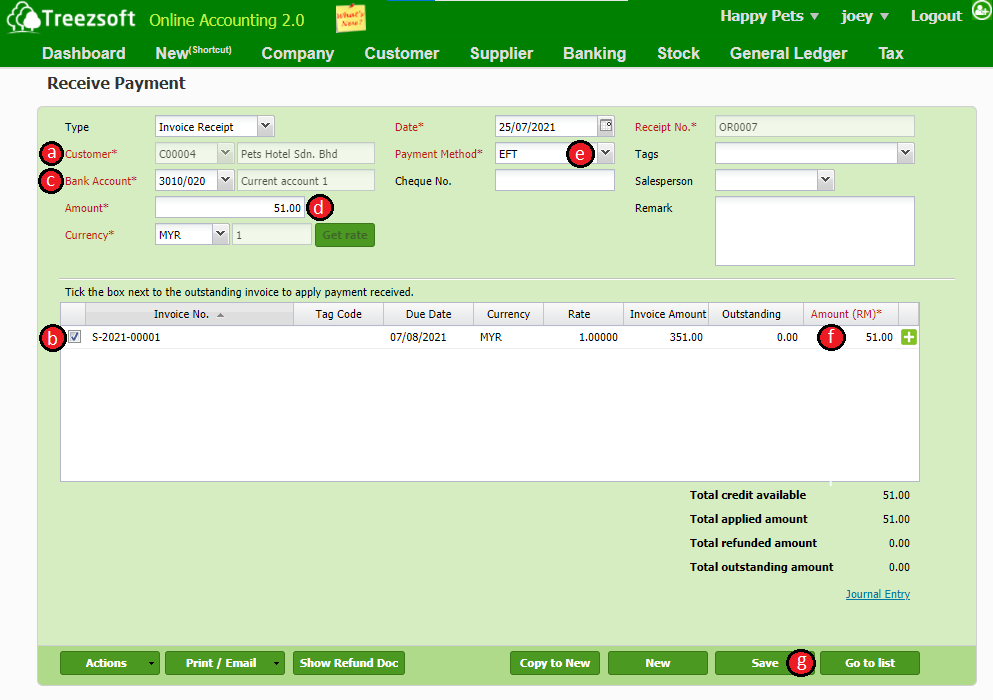
a. Select the respectively customers

b. Tick on the box of specific outstanding invoice to apply payment received

c. Select the bank account to received the payment

d. Key in the amount included

e. Select the payment method

f. Key in the amount included

g. Once done, click on "save" to save the record


You can read more on related topics in TreezSoft by visiting these links: 

  • How and when to delete or void sales invoice in Treezsoft?

  • How to create or edit debit note?

  • How to create or edit credit notes (CN)?

  • How to create or edit receive payment as security deposit in Treezsoft?

TreezSoft is a cloud accounting software for Small and Medium-sized Enterprises (SMEs). It allows you to access your financial information anytime, anywhere. It also allows you to have unlimited users for FREE for your account in TreezSoft. Our aim is to help reduce our clients' time spent on accounting mainly by using our automated processes and integration to help increase their company effeciency at a minimum costs. SMEs can use TreezSoft to keep track their expenses, accounts, daily operation e.g. Point of Sales (namely QPOS) system and etc. 

Visit TreezSoft at https://www.treezsoft.com/ to sign up for a 30 days trial account with us! 

You can also email us at [email protected] for more enquiries.


Keyword customer refund sales invoice receive payment

Recent

Why Treezsoft is the Ideal Cloud Accounting Solution for IFRS-Adopting Countries Simple Steps to Create Consolidated eInvoices How to Assign eInvoice Classification Code Invoicing for Optical Business Boost Efficiency & Control with Treezsoft’s Sales Person Setup Feature

Related

How to apply price level to customers? Record an overpayment on cash sales When to Enter Transactions as Historical Transactions and Current Transactions? How to create partial refund for fully paid invoice? (With GST) Simple Steps to Create Consolidated eInvoices Invoicing and accounting for jewelry companies Import functions in TreezSoft - Part 2 How to record payment made or received for GST? Invoicing for Optical Business How to create cash sales/simplified tax invoice? How to issue full tax invoice? How to create refund for fully paid invoice? (With GST) How and when to delete or void sales invoice in Treezsoft? How to create an Auto-Billing (Recurring Transaction)? Getting started with Progress Invoicing in TreezSoft How to customize document template (For Sales Invoice only)? How to add payment methods QPOS? How to import invoice listing? Invoicing Is Now Available in TreezSoft Mobile App! How to Record Machine or Device that Rent to Customer How to enter Withholding Tax in TreezSoft Having mistakes on invoicing again? How to import customer listing? Functionality of customer module in Treezsoft How to raise a refund and CN on fully paid sales invoice? How to contra between the sales invoice and purchase invoice? Invoicing for Contractor How to import list of historical customer invoices from template in Treezsoft? How to generate Customer's reports and what are they? How to manage customer's details in Treezsoft? How to create a sales invoice with 2 or more different delivery orders (D.O) in Treezsoft? How to Issue and Modify Invoices in Mobile App? Simple Steps to Create and Update both Standard and Self-Billed eInvoices How to edit or create customer types? Why after I set my document number to editable, I still unable to edit the document number when issuing sales invoice?
About About
  • About Us

Product Product
  • E-Invoicing
  • Features
  • Price

Resource Resource
  • Support
  • Blog
  • API
  • FAQ

Subscribe Us Subscribe Us
  • Sign Up
  • Contact Us

  
 [email protected]
 +6012-787 5077
  • playstore
Logo
© Copyright - TreezSoft.com. All rights reserved.
Hours: Mon-Fri 9am-5pm Term of use    |    Privacy      |    Site Map

Alert Message

0%

Confirm Message