Stocktaking is a crucial part of stock management for any product-based business. The company needs to ensure that the inventory level is 100% accurate from time to time. In TreezSoft, you can make use of our stock physical worksheets to help ease your stock-taking process. Once you've counted all your physical stock in hand, you just need to update the physical worksheets excel file and upload it into TreezSoft. As such, the TreezSoft system will automatically update the quantity of all your stocks.
How to upload stock physical worksheets?
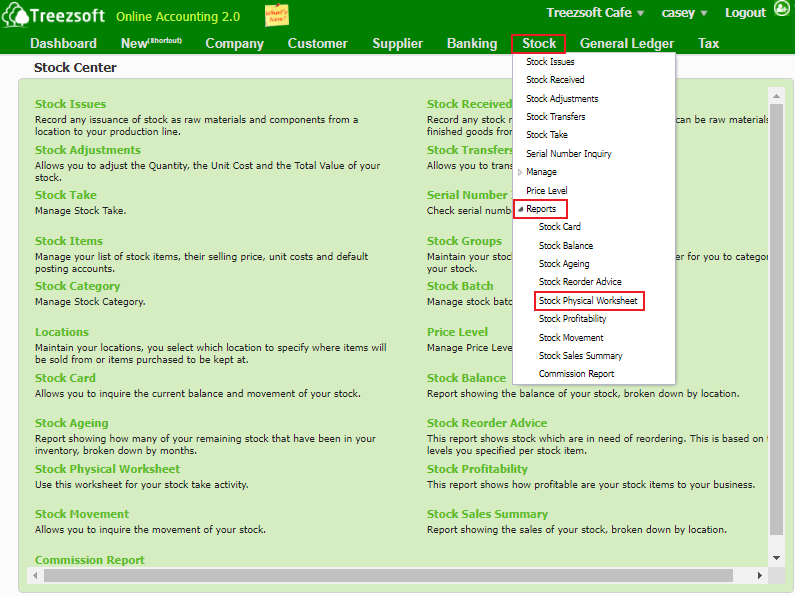
Step 1: To start, you will need to download the stock physical worksheet by navigating through Stock > Reports > Stock physical worksheet.
Step 2: Filter the information that you want for the stocktake.
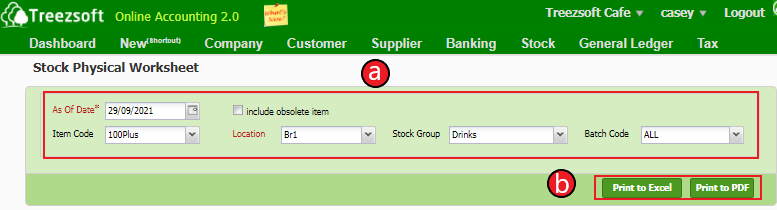
a. Filter the date, item code, location, stock group, and batch code that you want to do for the stocktake, please make sure that you have chosen the correct location and batch.
b. After filtering, you can click on "Print to Excel" or "Print to PDF" to download the stock physical worksheet.
Here's an example of a stock physical worksheet.
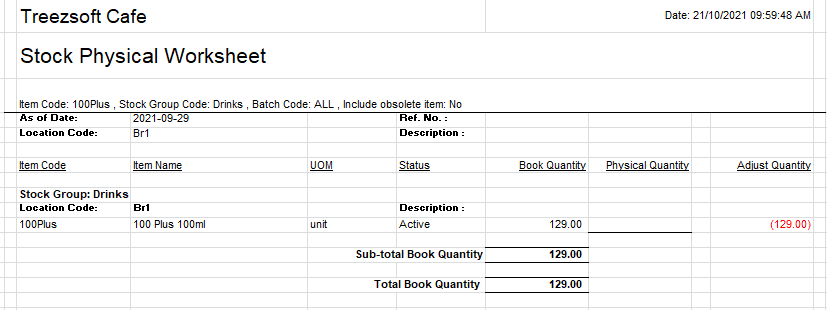
Note: The book quantity of your items will be shown in this report and a blank physical quantity column and adjusted quantity column are provided to record the figures to compare if any discrepancies are found.
Book quantity= Quantity that is recorded in the system.
Physical quantity= Actual quantity at your warehouse to be counted and updated.
Adjust quantity= Variant between physical and book quantity. ( Physical Qty – Book Qty )
Step 3: You may pass this stock physical worksheet to the storekeeper to calculate and fill in the actual quantity into the physical quantity column to see any discrepancy.
Step 4: Once you got the stock physical quantity, you will need to upload them into the excel file.
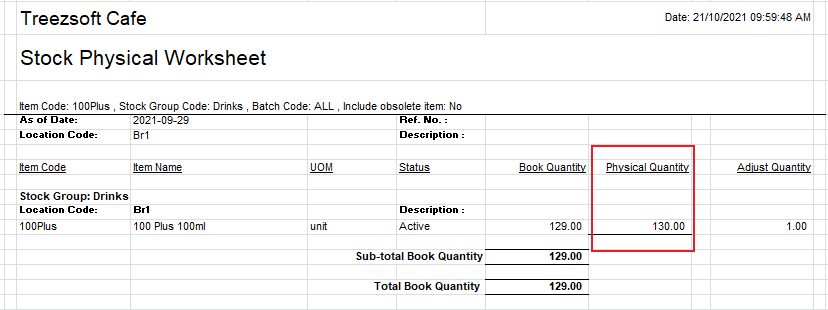
Step 5: After updating the actual physical quantity of your stock into the excel file. You can then upload the stock physical worksheet excel file to TreezSoft by navigating through Stock > Stock Take.
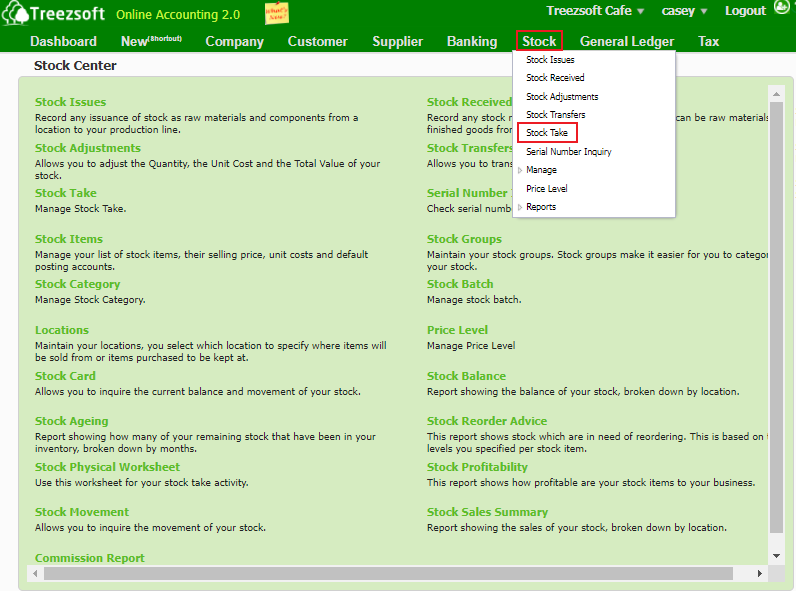
Step 6: Click on the “Upload Stock Physical Worksheet" button at the bottom.
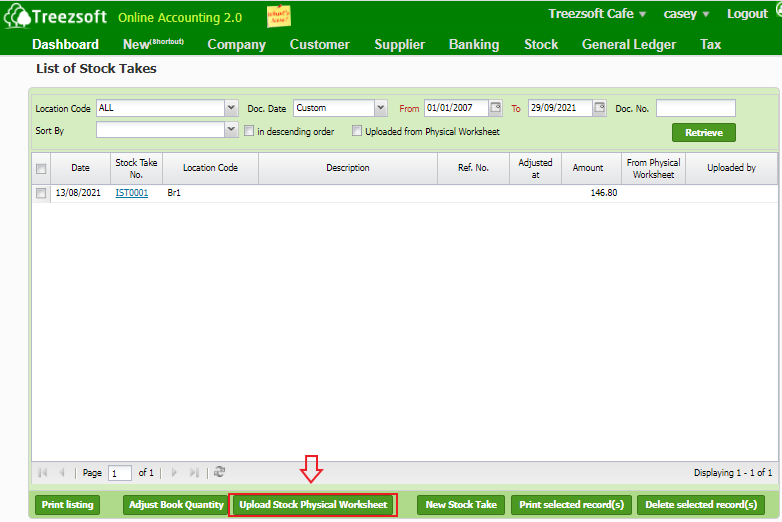
Step 7: You will see the screen below after you click on the button.
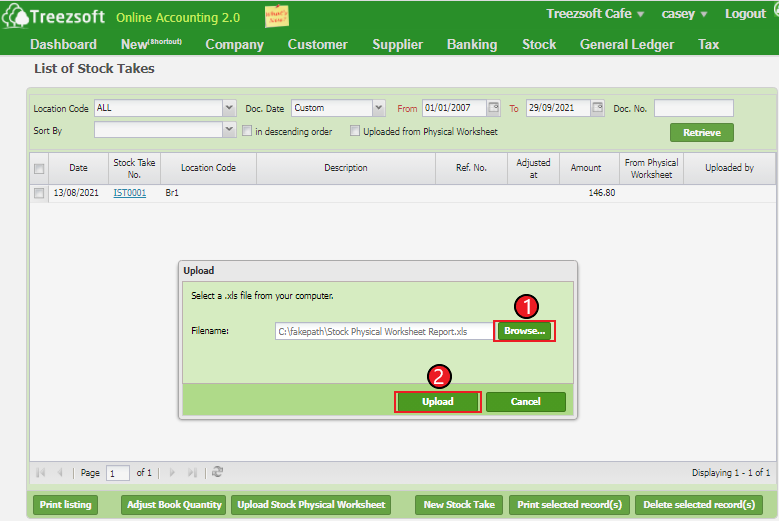
1. Click on "Browse" to select the stock physical worksheet that you have done.
2. Click on "Upload' to proceed.
After you upload the excel file, you will see the screen below.
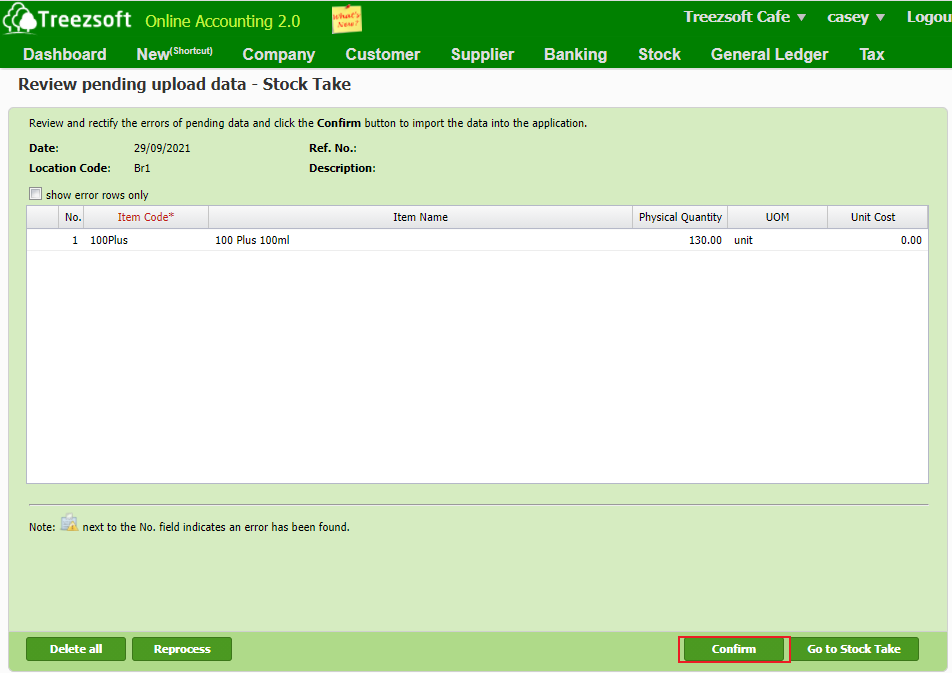
Click on Confirm to upload the worksheet.
As such, you can update stocktake quantity into Treezsoft Cloud Accounting in just a few steps.
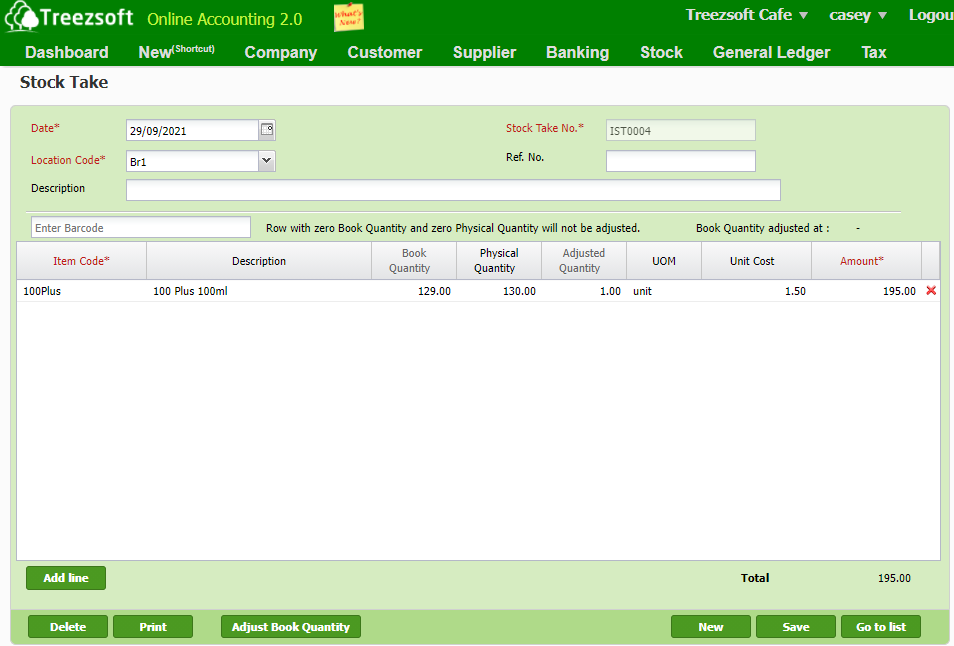
You can visit these links to read more about stock in TreezSoft:
You can also read more on the import function in the TreezSoft blog by visiting these links:
TreezSoft is a cloud accounting software for Small and Medium-sized Enterprises (SMEs). It allows you to access your financial information anytime, anywhere. It also allows you to have unlimited users for FREE for your account in TreezSoft. Our aim is to help reduce our clients' time spent on accounting mainly by using our automated processes and integration to help increase their company efficiency at minimum costs. SMEs can use TreezSoft to keep track of their expenses, accounts, daily operation e.g. Point of Sales (namely QPOS) system and etc.
Visit TreezSoft at http://www.treezsoft.com/ to sign up for a 30 days trial account with us!
You can also email us at [email protected] for more inquiries.